How to use
All the leading AI models. One key. Your rules, your proof.
Why
Every model, one key
Reach the popular models from OpenAI, Anthropic, and more with a single key. No juggling separate accounts or bills.
Your rules on every request
Each request follows your rules: which models are allowed, what may be sent, which tools the model may ask for, and a scan for sensitive data before anything leaves.
Your data stays in Canada
is hosted in Quebec and keeps a signed record of every call, so you always have the proof you need for Loi 25.
How works
Point any AI tool at instead of the model provider. From there, every request takes the same four steps.
- 01
Your tool asks
Cursor, Claude Code, VS Code, or your own app can talk to if they already talk to OpenAI or Claude.
- 02
checks it
applies your rules on models, tools, and sensitive data, then allows or blocks the request.
- 03
The model answers
sends the approved request to the model provider on your own contract and streams the answer straight back.
- 04
It's logged for you
Every call is written to a signed record you can export at any time.
Control what an agent is allowed to do
In Policies, open a profile, then Advanced — Agent controls. You decide what the AI model may ask for. If a tool is switched off, answers with an explanation. No provider is called.
Tools and MCP
Turn on or off the tools the model may ask for. You can also limit which tool names and MCP servers are allowed.
Code, computer, terminal, files
Four actions the AI model can launch. Web search and image generation are set higher on the same page.
What tonia does not see
A tool your editor runs on your machine never reaches . Neither does an MCP server the editor contacts directly.
Connect the tools your team already uses.
Compatible through OpenAI or Anthropic endpoints. These are not native integrations.
- Cursor
- Claude Code (desktop and CLI)
- Codex (desktop and CLI)
- VS Code (Copilot)
- Hermes / OpenClaw
- n8n




Get started
From sign in to your first answer. You will set most of this up once.
- 1
Sign in
Open the portal and sign in with the method linked to your account. No password is ever sent to .
- 2
Approve sensitive changes
When you save an sensitive changes, the button shows progress while the portal asks for your passkey or a fresh account re-authentication. If re-auth sends you away and back, the portal restores the form and finishes the save.
- 3
Use your own key or Managed
Bring your own provider key when you want calls to run on your direct OpenAI, Anthropic, or other model account. Choose Managed when you want to handle the provider access for you.
- 4
Set your guardrails
Turn on sensitive data detection for social insurance, health card, and credit card numbers. Then save a profile for each key. The profile decides models, sensitive data, and tools under Advanced — Agent controls.
- 5
Create your key
Open API key in the sidebar and create one. You'll see the full key once, so copy it somewhere safe.
- 6
Connect your tool
Add your key, the address, and the exact model id to your editor or app. Pick your tool below for the exact settings.
- 7
Watch and keep the proof
Follow your requests and spending under Usage, and export your signed records anytime from the Audit log.
What you can do in the portal
Once you're signed in, everything lives in the left sidebar. Here's what each area is for.
Dashboard
Your workspace at a glance: plan, seats, active keys, and recent activity.
Usage
Requests, tokens, and spend over time, broken down by key and model. With your own keys, prompt-cache read/write breakdown appears when the provider reports it; in managed mode, token totals stay intentionally opaque.
API key
Create, rotate, and switch off the keys your tools use. Each key is shown once and stored safely.
Your provider keys
Connect your own OpenAI, Anthropic, and other accounts so calls run on your direct contract.
Sensitive data
Decide what counts as sensitive and whether blocks it or just warns. Test it before you save.
Profiles
Reusable rule sets you attach to keys. They decide allowed models, limits, sensitive data, and tools under Advanced — Agent controls.
Members
Invite teammates, give each a role, and remove access when someone leaves. Available on team plans.
Billing
Your plan, seats, and invoices. Upgrade or change your plan here.
Audit log
A signed record of every call and admin action. Workspace admins can filter by user, type, and date; developers see their own member audit.
Settings
Your workspace name, defaults, and security options.
Security
Set up the passkey that approves sensitive actions. No password and no recovery phrase.
Choose the right model for each task
The best model depends on the work. Start with the task, then compare speed, quality, and cost.
- 1
Email, summaries, and everyday work
Choose a fast, economical model. It is usually enough for drafting, rewriting, sorting, or summarizing.
- 2
Complex analysis and decisions
Choose a reasoning model to compare options, follow long instructions, or solve a problem in several steps.
- 3
Code and automation
Choose a coding model when the task requires understanding a repository, changing several files, or using tools.
- 4
Documents, images, and data
Choose a multimodal model to read an image, document, or table. Check supported formats on the model page.
Conversation history and privacy requests
By default, tonia does not keep conversation history. A workspace admin can turn it on in settings, and the change is recorded in the audit log.
- 1
The default stays history-free
The audit log keeps a signed hash of every call. It does not show prompts or responses.
- 2
Viewing is logged
If retention is on, a workspace admin opens the audit journal and chooses View request or View response. Every view is written to the audit log before content is shown.
- 3
Members request access or erasure
A member opens the Account page on ask.tonia.ca to request a copy or erasure of their retained bodies and track status. Access, viewing, and erasure requests are also recorded in the audit log.
Chat and your history
Open clavarde.tonia.ca to chat with the models your authorized manager allows. Your browser never receives the session key. History is encrypted for 90 days.
- 1
Use the workspace chat profile
The model picker shows only models allowed by the workspace's default chat profile. tonia's sensitive-data, provider, model, and audit rules still apply to every message.
- 2
History is member-owned
Saved conversations are linked to your member account and encrypted at rest. tonia operators and workspace admins cannot open this chat-history store; admins see aggregate usage counts only.
- 3
Export your conversations
Choose Export in the history panel to download your saved conversations for this workspace. The export uses the same member-bound
tonia_*session key as chat. - 4
Erase your history
Choose Erase all to delete your saved conversations for this workspace. Deletion is recorded as a security event, and normal retention purges conversations after 90 days.
Connect your tools
You only need one key. The same key works for OpenAI compatible tools and Claude tools. Add the address, your key, and the exact model id, then pick your tool for the exact settings.
The address
https://pass.tonia.ca:8443
This is the only address your tools point at. automatically sends each request to the right model provider.
Replace tonia_sk_… in each snippet with the key you created. Every key is one secret that starts with tonia_sk_ and runs about 50 characters. It is shown once, so keep it safe.
You must also enter the exact model id, for example xai/grok-4.3. Find it under each model name on the models page.
Cursor
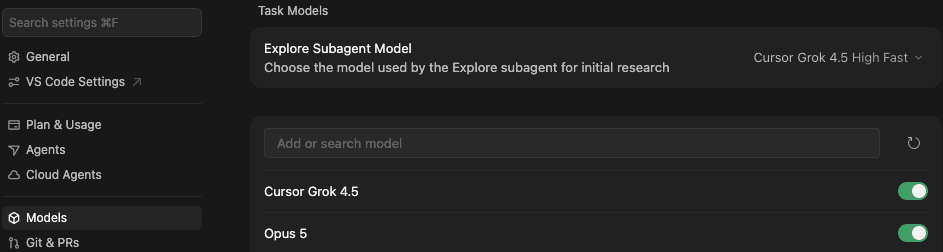
OpenAI compatibleFour steps in Cursor: Settings → Models.
- 1
Open Models
In Cursor, open Settings, then Models. This is where you add models and point them at .
- 2
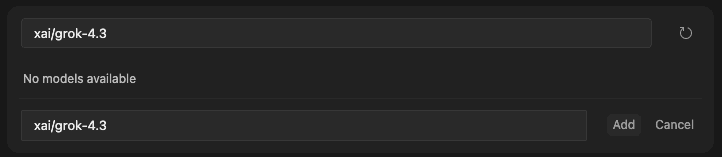
Add a model
In “Add or search model”, type the exact model id (for example
xai/grok-4.3), then click Add.- Model id
xai/grok-4.3
- Model id
- 3
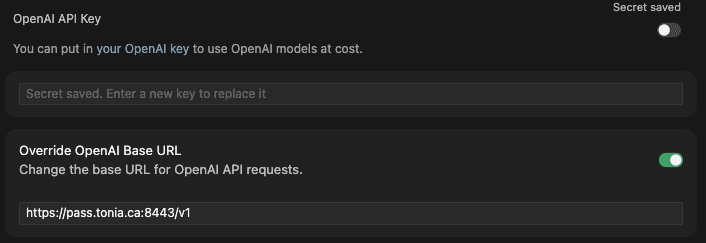
Paste the key and address
Paste your
tonia_sk_…key. Turn on “Override OpenAI Base URL”, then paste the address that ends with/v1.- API key
tonia_sk_… - Address
https://pass.tonia.ca:8443/v1
- API key
- 4
Add more models
Repeat for each model you need. Exact ids are on the models page.
Good to know: Cursor uses an OpenAI compatible connection, so connect a provider key for OpenAI under Your provider keys (or use a Managed plan). For Gemini, use gemini/models/… (not gemini/…). The exact id is on the models page.
If a tool won't connect
- A certificate warning or a security warning.
- Use the public address shown above. It has a trusted certificate.
- It says a provider key is missing.
- Connect that provider under Your provider keys, or switch to a Managed plan.
- The wrong kind of model answers.
- Use the address that matches your tool: the one ending in /v1 for OpenAI compatible tools, or the plain address for Claude tools.
- A 404 error, or the address seems to double /v1.
- Use the public address shown above, with /v1 only once and no trailing slash.
- The model list in the tool is empty.
- Type the exact model id. You can find it on the models page.
- The connection fails after you fill in Organization ID.
- Leave Organization ID blank for .
- The tool asks for an Azure deployment name.
- Choose OpenAI compatible mode (not Azure OpenAI) and use the /v1 address above.
- In Zapier, the ChatGPT or OpenRouter app has no address field.
- That is expected — those apps cannot point at . Use Webhooks → Custom Request to the full /v1/chat/completions URL.
- In Make, the native OpenAI module will not take a custom address.
- Use HTTP → Make a request to the full /v1/chat/completions URL, or an Agents “Other Providers (Compatible with OpenAI)” connection.
- Claude Desktop shows “found 0 models”, only lists Claude models, or says a model “doesn't look like an Anthropic model”.
- This is a Claude Desktop app limitation, not a problem — its model picker only accepts Claude-named models, even when your key can reach more. Use the Claude Code CLI, Cursor, or another tool in this list for the rest of your roster.
- In Copilot Chat you pick your model, but the answer comes from a GitHub model (for example Raptor Mini).
- Open your Custom Endpoints and give each entry a unique name (not two blocks both called “tonia”). Reload the window (Developer: Reload Window), start a new chat, then pick your model again.
Image size
To generate an image, send 1k, 2k, or 4k — or OpenAI size. sends the right field to each provider. Do not put the provider’s field in your code.
Gemini images use /v1/interactions, not /v1/images.
On Image 2 and Image 1.5, 2k and 4k become 1536x1024. On Image 2.5 (Flare and Sunburst), 2k becomes 2048x2048 and 4k becomes 3840x2160. Image 2.5 also accepts xhigh and max. Image 2.5 is billed by token, not per image.
| Provider | You send | sends | Avoid |
|---|---|---|---|
| OpenAI | 1k, 2k, or 4k | 1024x1024 · Image 2: 1536x1024 · 2.5: 2048x2048 / 3840x2160 | 4096x4096 |
| xAI | 1k or 2k | resolution 1k or 2k | size and quality |
| Meta | width × height or auto | the same format | 1k, 2k, 4k |
| Alibaba | 1k, 2k, or 4k | width*height or 1K, 2K, 4K | 2k and 4k on the turbo model |
| Gemini | 1k, 2k, or 4k | image_size 1K, 2K, or 4K | /v1/images |
Speech and transcription
To make a model speak, send input and voice. To transcribe a file, send the file. sends the right field to each provider. Do not put the provider’s field in your code.
Gemini models use /v1/interactions, not /v1/audio. Spoken chat uses the same chat messages, with audio parts.
| Provider | You send | sends | Avoid |
|---|---|---|---|
| OpenAI | input and voice or a file | the same fields | — |
| Mistral | input and voice | voice_id | alloy as a Mistral voice |
| Alibaba | input and voice or a file | text + voice, or the file as an address | /v1/audio in compatible mode |
| Gemini | /v1/interactions | the Interactions body | /v1/audio |
| Meta | a file | the same file | /v1/audio/speech and /v1/audio/translations |
| Fish Audio | input and voice, optional input_references, or a file | the same fields | the bare id s2.1-pro and /v1/tts |
Embeddings
To turn text into a vector, send the model and the text to /v1/embeddings. This is not chat.
The tonia chat app does not offer these models. Use your API key.
| Provider | You send | sends | Avoid |
|---|---|---|---|
| OpenAI | model and input | the same fields | /v1/chat/completions |
| Cohere | model and input | texts at the lab | /v2/embed |
Rerank
To order documents you already have, send a query and the list to /v1/rerank.
A rerank search is not a web search.
| Provider | You send | sends | Avoid |
|---|---|---|---|
| Cohere | model, query, and documents | the same contract, a different lab path | /v2/rerank as the client address |
System One
For a typed decision, send a state and questions to /v1/systemone. The reply is not free prose. Use client.request("POST", "/v1/systemone", …).
Send {model, state, questions}. state is the text or record to judge (string, object, or array). Question ids are code: they are not sent to the model.
| Type | You send | You get back |
|---|---|---|
noul | A yes/no question. criteria.true and criteria.false are optional. | noul: probability that the answer is yes. Near 1 is a strong yes. Near 0 is no. Near 0.5 is uncertain. A noul has no confidence. |
choice | One option from the set you name in criteria. | choice, probabilities, confidence. |
score | An ordered scale in criteria (at least two levels). | score (can land between levels), legend, probabilities, confidence. |
confidence exists only on Choice and Score. It is a number from 0 to 1 computed from probabilities. The answer tells you what. confidence tells you whether to act.
Point the TypeSafe SDK at the origin only. models.list() through tonia is unsupported. One call counts against the 10,000 your API keys quota. A cheap call may show $0.00 CAD; the CSV keeps micros. jev-latest is a moving alias: the response model carries the versioned id.
Need a hand?
Check the live status of anytime from the Status page, or reach your contact. Everything you do here is recorded for you and stays in Canada.